
On this page
- How Google Business Profile verification works in 2026
- Before you start: are you even eligible?
- Storefront or service area: decide this first
- My pre recording checklist
- Do not edit the profile during verification
- The three things every verification video must prove
- 1. Location: you are where the profile says you are
- 2. Business: this is a real, operating business
- 3. Management: you are authorized to run it
- A quick way to self check
- Recorded video verification: the rules, a shot plan and a sample script
- The rules Google sets
- My shot plan for a storefront business
- My shot plan for a service area business
- A sample narration script
- Small things that make a big difference
- Live video call verification: what actually happens
- How it works
- What the representative usually asks to see
- How I prepare clients for the call
- When the call cannot be scheduled
- Special cases: home based, co working, new businesses and many locations
- Home based and service area businesses
- Co working spaces and shared offices
- Virtual offices
- Brand new businesses
- Businesses that moved
- Agencies verifying for clients
- Chains and brands with 10 or more locations
- Regulated categories
- After you submit: timeline and what each status means
- How long it takes
- The statuses you may see
- Expect re verification after big edits
- What I do right after a profile is verified
- Why verification videos get rejected, and how to fix each one
- What to do after a rejection
- A note on “I did everything right and it still failed”
- “No more ways to verify”: what to do when every option is gone
- The path I follow
- What to write to support
- What not to do
- Verification problem or suspension? Know which one you have
- If you are suspended
- Privacy and safety while recording
- Frequently asked questions
- Can I choose postcard verification instead of video?
- How long should my verification video be?
- Can I upload a video I recorded earlier?
- How long does video verification review take?
- Do I need to show my face?
- I work from home. Do I have to film inside my house?
- My video was rejected. Should I make a new profile?
- What does “No more ways to verify” mean?
- Will I have to verify again later?
- Can a virtual office be verified?
- Is my verification video public?
- Need help with your verification?
- Sources
You set up your Google Business Profile, filled in every detail, and then Google asked for a video. No postcard, no phone code, just a camera and a list of things to show. If that is where you are right now, you are in very good company.
Over the past couple of years, video has quietly become the main way Google verifies businesses. Google’s own help page now describes postcard verification as something that “isn’t available for all businesses” (Google), and for a lot of owners a recorded video or a live video call is the only option on the screen.
I am Ayush Mauryavanshi, a Diamond Product Expert in the Google Help Community. Verification is one of the topics I deal with most, both helping business owners in Google’s community and in client work. Most failed verifications I see are not about fraud or bad luck. They come down to a profile that was not ready, or a video that did not show what Google needs to see.
This guide covers all of it, step by step, with a link to Google’s own documentation for every rule.
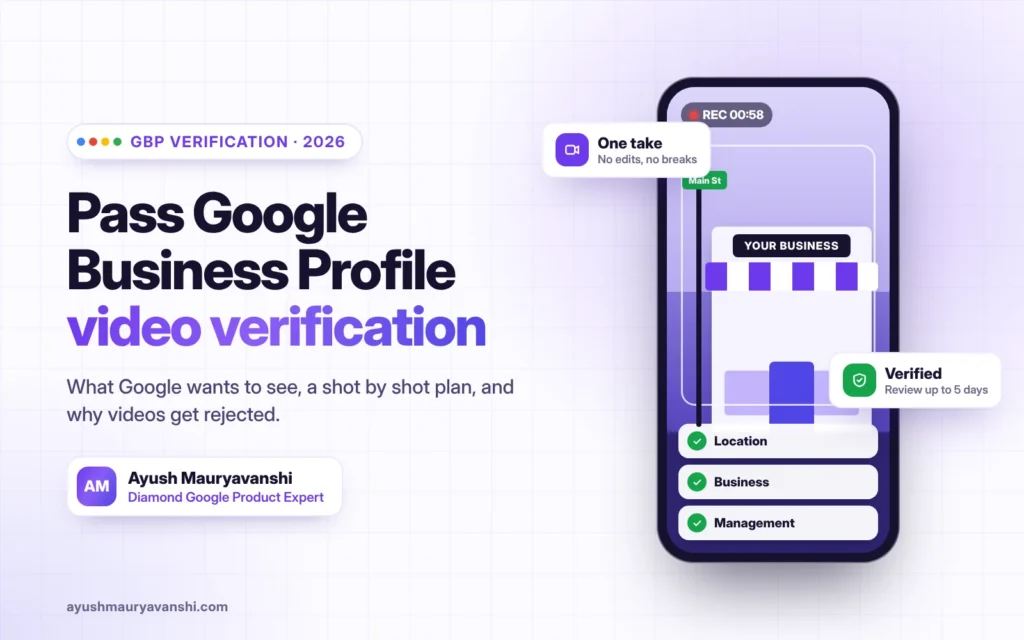
The quick answer: a verification video has to prove three things in one unedited take recorded live on your phone: where your business is, that it really exists, and that you manage it. Get your profile details right before you record, plan your shots, and you will pass far more often than not.
In this guide:
- How verification works in 2026, and why you get the methods you get
- The checklist to run before you record anything
- What every video must prove, with a shot by shot plan and a sample script
- Live video calls, service area businesses and special cases
- What happens after you submit, why videos get rejected, and what to do when no option is left
- How verification problems differ from a suspension
How Google Business Profile verification works in 2026
Verification is how Google confirms that a real business exists at the place you say, and that you are allowed to manage it. Until a profile is verified, you cannot properly manage it, and it may not show the way you expect on Search and Maps.
The most important thing to understand is this: you do not choose your verification method. Google does. Its help page says the methods available depend on things like your business type, your region and other factors, and that you cannot change them (Google). Two businesses on the same street can be offered completely different options.
Here is every method Google currently describes:
| Method | How it works | Good to know |
|---|---|---|
| Video recording | You record a short, unedited video of your business live in the app and upload it | Now the most common option; reviewed in up to 5 business days (Google) |
| Live video call | A Google support representative joins a video call and asks you to show your location and business | Only during your business hours, and you must be at the business (Google) |
| Phone or text | Google calls or texts a code to your business number | Automated phone menus (IVR) will not receive the code |
| Google emails a verification link | Use an inbox you can access, ideally on your business domain | |
| Postcard | Google mails a 5 digit code to your address | Not offered to all businesses; codes expire after 30 days |
| Instant (Search Console) | Some businesses are verified instantly if the website is already verified in Google Search Console | Only in some cases, and only if Google offers it |
| Bulk verification | Chains and brands with 10 or more locations apply as a group | Needs at least 10 locations and a clean spreadsheet (Google) |
Why is video now so common? Google has not published one single reason, but the direction is clear. A video is much harder to fake than a postcard sent to an address, and it lets Google see the business itself rather than just a mailbox. Industry reporting through 2026 has noted postcards being offered less and video being offered more (JXT Group).
So the practical takeaway is simple: prepare as if video is the method you will get, because it usually is.
Before you start: are you even eligible?
This is the part almost everyone skips, and it causes more failed verifications than bad camera work. If your business does not qualify for a profile, no video in the world will get it verified. So before you press record, read Google’s guidelines for representing your business and check yourself against them honestly.
Here is what those guidelines actually say, in plain words:
- You must make in person contact with customers during your stated hours. Online only businesses do not qualify for a Google Business Profile (Google).
- Virtual offices are not eligible, unless they are staffed during business hours. Mailboxes and remote mail drops are not allowed either, and P.O. boxes do not count as a real address.
- Co working spaces are a grey area. Google says a business in a co working space can qualify only if it has clear signage, receives customers there during stated hours and is staffed during those hours. A desk you rent once a week will not pass.
- Only the owner or an authorized representative can verify. Agencies can manage profiles for clients, but the business itself has to be real and agree to it.
- Your name must be your real world name. That means the name on your signage, website, stationery and how customers know you. Adding keywords, locations or taglines (“Best Dentist Mumbai Teeth Whitening”) breaks the rules and is one of the fastest ways to fail verification or get suspended later.
- Choose categories that describe what your business is, not everything it does, and use as few as you need. Google’s wording is that categories should complete the sentence “This business IS a” (Google).
Storefront or service area: decide this first
Google treats these two types very differently, and your video must match the type you chose.
- A storefront business has a location customers visit, like a shop, clinic, salon or restaurant. You show the address.
- A service area business goes to the customer, like a plumber, cleaner or mobile mechanic. You hide your address and set a service area instead. Google says the service area should not extend farther than about 2 hours driving time from where you are based (Google).
- A hybrid serves customers at a location and also travels to them. It can show its address and set a service area.
If you work from home and customers never visit, you are a service area business. Do not list your home address publicly to look like a shop. That mismatch is a classic reason videos get rejected, because the reviewer is shown a living room while the profile claims a storefront.
Some reports in 2026 say Google now asks new profiles a “What best describes your business?” style question during setup to sort storefronts from service businesses. That has been reported by industry sites (JXT Group); answer it truthfully, because it shapes what Google expects to see.
My pre recording checklist
This is the checklist I go through with clients before anyone records anything. Do not move on until every line is true.
- The business name on the profile exactly matches the name on your sign, website and documents.
- The address is correct, formatted the way Google Maps shows it, and is not a P.O. box or virtual office.
- You have chosen storefront, service area or hybrid correctly.
- Your primary category describes what you are, not a keyword.
- Your phone number and website are real and belong to the business.
- You have permanent signage, or for service businesses, branded equipment, a vehicle or documents ready to show.
- You can record during business hours, at the location, with good light and a charged phone.
- You have the Google Maps app or Google Search open on your phone, signed into the account that manages the profile.
- You know where the nearest street sign or landmark is.
Do not edit the profile during verification
One more warning that saves a lot of pain. Once you have submitted a video, leave the profile alone. Changing the name, address or category while Google is reviewing can reset the review or trigger a request for more information (Google). Make all your edits first, then verify.
The three things every verification video must prove
If you remember one section of this guide, make it this one. Google’s own help page on video verification boils the review down to three proofs (Google). Every second of your video should serve at least one of them.
1. Location: you are where the profile says you are
The reviewer needs to place you on a map. Google asks you to show the current location, such as street signs, nearby businesses or other landmarks around you (Google).
What works: a street name sign, the building number, the shop next door, a well known landmark at the corner. Slowly pan from that landmark to your entrance in one continuous move, so the reviewer can see they are connected.
What fails: starting the video already inside, close ups that could be anywhere, and night shots where nothing is readable.
2. Business: this is a real, operating business
Next the reviewer wants proof that a business actually operates here. For a storefront that usually means permanent exterior signage with your name, then the inside: products, equipment, the counter, the space customers use.
For a service area business there may be no shop to show, so Google accepts other proof, like branded vehicles, tools or equipment you use for the job (Google). A plumber can show the van with the logo and the tool kit. A photographer can show the camera gear and the studio corner.
A paper sign taped to a window, or a sign that was obviously printed this morning, raises doubts. Permanent signage matches what Google means by a real world business.
3. Management: you are authorized to run it
Finally, the reviewer needs to see that you are the person, or one of the people, who runs this business. Google’s examples include showing that you have access to employee only areas, opening the cash register or point of sale system, or showing business documents such as a utility bill or business license (Google).
Unlocking the front door with your key on camera is one of the simplest and strongest proofs I know. It shows access, location and the business in one move.
Privacy matters here. You do not need to show full account numbers, tax IDs or bank details. Show the business name and address on the document and keep sensitive numbers covered with your thumb or out of focus. More on this in the privacy section below.
A quick way to self check
Before uploading, watch your own video and ask three questions:
- Could a stranger find this exact building from what I showed?
- Is it obvious a real business with this name operates here?
- Is it obvious I have access and control?
If any answer is “maybe”, record it again. A second take costs you five minutes. A rejection can cost you weeks.
Recorded video verification: the rules, a shot plan and a sample script
The rules Google sets
These come straight from Google’s video verification help page (Google) and the general verification page (Google):
- Record live inside the Google flow. You start recording from your profile on Google Search or the Google Maps app. You cannot upload a video you filmed earlier from your gallery.
- One continuous take. No editing, no cuts, no filters, no music. If you stop, you start again.
- Use a mobile device. The flow is built for phones and tablets, because you need to walk around.
- Long enough to show everything. Google mentions a minimum length (around 30 seconds) in the recording flow. In practice I aim for 45 to 90 seconds, which is enough to show the three proofs calmly without rushing.
- You can retake before submitting. If the take is bad, use the option to try again. Recent versions of the flow also let you preview the video before you submit it, a change reported in April 2025 (Search Engine Land).
- Review takes up to 5 business days after you upload (Google).
My shot plan for a storefront business
This is the order I give clients. It walks the reviewer from the street to the cash drawer in one natural line.
| Time | What to film | Which proof it covers |
|---|---|---|
| 0 to 10 sec | Street name sign or a landmark, then pan to your building | Location |
| 10 to 20 sec | Building number and the shops on either side | Location |
| 20 to 30 sec | Your permanent sign with the business name, held steady for 3 seconds | Business |
| 30 to 40 sec | Unlock the front door with your key | Management |
| 40 to 60 sec | Walk inside: products, equipment, counter, the customer area | Business |
| 60 to 75 sec | Open the cash register or point of sale, or a staff only room | Management |
| 75 to 90 sec | A business document (license or utility bill) showing name and address, sensitive numbers covered | Management |
My shot plan for a service area business
There is no shop, so the proof has to come from the tools of the trade.
| Time | What to film | Which proof it covers |
|---|---|---|
| 0 to 15 sec | Street sign or landmark near where you are based, then your vehicle | Location |
| 15 to 30 sec | Branded vehicle: logo, business name, phone number | Business |
| 30 to 50 sec | Unlock the vehicle and show tools, equipment, stock | Business, Management |
| 50 to 70 sec | A business document or license with your business name | Management |
| 70 to 90 sec | Optionally, a branded uniform, invoice book or work order (sensitive data covered) | Business |
You do not need to show the inside of your home if you work from home. Google says a service area business does not need to show its address publicly, and your video only needs to prove the business, not your bedroom.
A sample narration script
Talking is optional, but a calm narration helps the reviewer follow along. This is the kind of script I write with clients. Change the brackets to match your business.
“Hi, this is [your name], owner of [business name]. I’m on [street name], here’s the street sign. This is our building, number [number], next to [neighbour shop]. Here’s our sign. I’m unlocking the front door now. Inside, this is our [shop floor or treatment room or workshop], here are our [products or equipment]. This is our counter and the register, which I’m opening now. And this is our business license with our name and address. Thank you.”
Small things that make a big difference
- Daylight, during business hours. Readable signs win reviews.
- Walk slowly. Fast pans turn into blur. Count to three on every important shot.
- Hold the phone steady with two hands, in landscape or portrait, but do not switch midway.
- Clean the lens. Seriously. Half the blurry videos I see are fingerprints.
- Strong connection. Upload over good Wi Fi or mobile data so the upload does not fail.
- Use the account that owns or manages the profile. Recording from another account will not help.
- No people’s faces needed. Customers do not need to appear. If staff are working, a quick friendly wave is fine, but not required.
Live video call verification: what actually happens
Some businesses are offered a live video call instead of, or after, a recorded video. In my experience this tends to show up when a recorded video was not enough, or when Google wants a closer look. It feels more stressful, but honestly it is often easier, because a real person can tell you exactly what they need.
How it works
Google’s verification help page says that with a live video call, you connect with a Google support representative who will ask you to show your location and business (Google). Two conditions matter:
- It only works during your business hours, so the hours on your profile need to be correct.
- You must be at the business during the call. Calling from home about your shop will not work.
What the representative usually asks to see
The call follows the same three proofs as a recorded video, just with a human steering. Be ready to show:
- The outside of the building, the street and something that identifies the area
- Your permanent signage
- The inside of the business with products, equipment or the workspace
- Something only staff can access: a back office, stock room or employee only door
- The cash register or point of sale opening
- Business documents with your name and address (cover sensitive numbers)
- Keys, unlocking the door or a locked cabinet
How I prepare clients for the call
- Test the space first. Do a practice walk with your phone, check the Wi Fi or mobile signal in every room you will show.
- Charge the phone and close other apps. A dropped call means starting over.
- Keep documents in one place near the counter so you are not searching while the representative waits.
- Have a second person nearby if you need help opening doors while holding the phone.
- Answer simply and honestly. If you do not know something, say so. The representative is checking that the business is real, not testing your knowledge.
- Do not read a script robotically. On a live call, a natural conversation looks much more real.
When the call cannot be scheduled
If you have run out of options and want a live call, you usually need to go through Google support. I cover that path in the “no more ways to verify” section below.
Special cases: home based, co working, new businesses and many locations
Most failed verifications I review are not bad videos. They are unusual situations where the owner did not know what Google expects. Here are the ones I see most.
Home based and service area businesses
If customers do not come to you, set the profile as a service area business and hide your address (Google). In the video, focus on the business, not the house. Start with a street sign near you so the location is clear, then show your branded vehicle, tools, equipment, stock and a business document. You do not have to film your living room, and I would not.
If customers do come to your home, for example a home based tutor or beautician with a dedicated room, you can show the address. Then the video should show signage at the entrance (even a permanent plaque) and the room set up for customers.
Co working spaces and shared offices
Google allows a profile in a co working space only when you have clear signage, receive customers there during your stated hours and are staffed during those hours (Google). So the video needs to prove all three. Show the building, the directory or reception board with your business name, your own permanent sign at your desk or office door, and your workspace. If you cannot show your name anywhere permanent, expect trouble.
Virtual offices
I will be direct, because people lose money here. A virtual office address that you never staff is not eligible (Google). Do not try to verify one. Even if it passes once, it is a common reason for later suspensions. Switch to a service area profile instead.
Brand new businesses
If you have just opened, verify when the business is actually operating, not while it is still being fitted out. Wait until permanent signage is up and you have your business registration or license. Google wants to see an operating business, and a half built shop with no sign reads as “not real yet”.
Businesses that moved
If you moved, update the address and expect Google to ask you to verify again. Record the new location in the same way, and do not keep the old address running on a second profile. Duplicate profiles create more problems than they solve.
Agencies verifying for clients
Agencies are allowed to manage profiles, but the business must be the one proving itself. The person recording should be at the business, with access, during hours. In practice that means the owner or staff record the video while the agency guides them. If you are an agency, send your client a simple version of the shot plan from this guide.
Chains and brands with 10 or more locations
If you manage 10 or more locations of the same business, you may be able to use bulk verification instead of verifying each one individually (Google). You need a business group, consistent location data, and a request form with contact details for the brand. Google reviews the request, and once approved, new locations you add are often verified more smoothly. Smaller groups below that number verify each location separately.
Regulated categories
Some categories, like locksmiths and certain home services, are more heavily abused by spammers, so in my experience Google is stricter with them. If you are in one of these, be extra careful with signage, documents and a real storefront or genuinely branded vehicle. Some regions also run Google’s advanced verification or local services screening for these categories.
After you submit: timeline and what each status means
You pressed submit. Now the waiting starts, and this is when people make their worst decisions, like editing the profile or creating a second one “just in case”. Please do not.
How long it takes
Google says video reviews take up to 5 business days (Google). Many come back sooner, sometimes within hours. If it has been longer than a week, it is reasonable to contact support, which I explain below.
The statuses you may see
| What you see | What it usually means | What to do |
|---|---|---|
| “Verification in review” or “Pending” | Google has your video and is checking it | Wait. Do not edit the profile |
| Verified, profile manageable | Done | Complete the profile fully: hours, photos, services, description |
| “Get verified” appears again | The video was not accepted, or Google needs another try | Read any message, fix the issue and record again if offered |
| “Review issues” or a request for more information | Google needs something specific, often about name, address or category | Fix the data first, then verify again |
| “No more ways to verify” or no options shown | You have used up the methods offered for now | Go to the support path below |
| Suspended | A policy problem, not a verification problem | Use the appeals process, covered in the suspension section |
You can see your current state on Google’s verification status tool, which is also linked from the help page for checking a profile’s status (Google).
Expect re verification after big edits
Verification is not always forever. Changing your business name, address or primary category after you are verified can trigger another round of verification, and industry reports in 2026 say this is happening more often (JXT Group). So plan big changes carefully, make them in one go, and keep your signage and documents ready in case Google asks again.
What I do right after a profile is verified
- Add real photos of the outside, inside and team
- Check hours, including holidays
- Add services or products with honest descriptions
- Turn on messaging only if someone will reply
- Set up a simple routine to answer reviews
A fully completed, accurate profile is the best protection against future verification and suspension issues.
Why verification videos get rejected, and how to fix each one
Google rarely tells you the exact reason a video failed. So over the years I have built my own list from the cases I have reviewed. These are the causes I see again and again, roughly from most to least common.
| Rejection cause | What the reviewer saw | The fix |
|---|---|---|
| No clear location | Video starts inside, no street, no landmark | Begin outside with a street sign or landmark and pan to your door in one move |
| No permanent signage | Temporary banner, printout or no sign at all | Install a permanent sign, or for service businesses, brand your vehicle and equipment |
| Name mismatch | Sign says “Sharma Dental”, profile says “Best Dentist Mumbai Sharma Dental” | Remove keywords so the profile name matches the real world name (Google) |
| Address mismatch | Video shows a different building or a home while the profile shows a shop | Correct the address or switch to a service area profile |
| No proof of management | Owner never shows keys, register, back office or documents | Unlock the door, open the register, show a document |
| Edited or uploaded video | Cuts, filters, or a video not recorded in the flow | Record live, one take, inside Google Maps or Search (Google) |
| Poor quality | Dark, shaky, blurry, too fast | Daylight, slow movement, clean lens, steady hands |
| Ineligible business | Online only, virtual office, unstaffed P.O. box | Do not verify; change the business model on the profile or skip a profile |
| Recorded outside hours | Closed shop, lights off | Record during your stated business hours |
What to do after a rejection
- Do not create a new profile. Duplicates make it harder, and can lead to suspension.
- Read every message in the profile and in your email. Sometimes Google points at the problem.
- Fix the data first: name, address, category, business type. Then wait a little for the change to settle.
- Look for a new option. If “Get verified” shows again, see which methods are offered now. Sometimes a live call or a different method appears.
- Record again using the shot plan in this guide, slower and clearer than before.
- If nothing is offered, move to the support path in the next section.
A note on “I did everything right and it still failed”
It happens. Reviews are done by people and systems, and sometimes a good video fails. That is frustrating, but it is not a reason to try tricks. A clean second attempt and a calm support request fix most of these cases.
“No more ways to verify”: what to do when every option is gone
This message scares people more than any other. You open the profile and there is simply nothing left to try. A thread on the Local Search Forum shows exactly this: one failed video, then “no more ways to verify” (Local Search Forum). It is common, and it is usually fixable.
The path I follow
- Wait a few days. Sometimes new options appear on their own after a short cooling period. Do not edit the profile while you wait.
- Check the verification status using the tools linked on Google’s verification help page (Google).
- Contact Google Business Profile support through the official contact page (Google). Choose the option about verification, and explain the situation briefly.
- Ask politely for a live video call. Many owners report that support can arrange one when the recorded options are exhausted (Local Search Forum).
- Have your evidence ready: photos of signage, business registration, utility bill, and a link to your website, all with the same name and address as the profile.
What to write to support
Keep it short and factual. Something like:
“Hello, my profile for [business name] at [address] shows no more ways to verify after my video was not accepted. We are an operating business with permanent signage, open [hours]. I can do a live video call from the business at any time during hours, and I can share our business registration and utility bill. Could you help me complete verification? Thank you.”
What not to do
- Do not open multiple tickets for the same issue. Google has a policy against misuse of support channels, and repeated or abusive contact can count against you (Google).
- Do not create a fresh profile for the same business.
- Do not pay anyone who promises “guaranteed verification” or offers a “Google contact”. Product Experts like me volunteer on the official Google Business Profile Help Community, and no one outside Google can force a verification through.
If you still get nowhere, posting your case on the Help Community with clear details is a good next step. Product Experts can review it and, in some cases, escalate it to Google staff.
Verification problem or suspension? Know which one you have
These two get mixed up all the time, and the fix is completely different. Treating a suspension like a verification issue wastes weeks.
| Verification issue | Suspension | |
|---|---|---|
| What it means | Google has not yet confirmed your business | Google believes the profile breaks a policy |
| Typical message | “Get verified”, “Verification in review”, “No more ways to verify” | “Your profile is suspended” or the profile is restricted |
| Where it is fixed | Verification flow, then support | The appeals tool (Google) |
| Evidence | A video or call showing the business | Documents proving the business is real and compliant |
If you are suspended
Google’s restoration page explains that you appeal through the official appeals tool, upload evidence, and track the status there (Google). From that page and my own reinstatement work, the essentials are:
- Fix the policy problem first. Remove keywords from the name, correct the address, change categories, before you appeal.
- Submit strong evidence: business registration or license, utility bill, photos of permanent signage and the inside, and sometimes a video. Everything should show the same name and address as the profile.
- Appeal once and wait. Google says submitted appeals cannot be edited, so get it right the first time.
- Do not create a new profile to get around a suspension. That makes everything worse.
- Check the appeal status in the tool rather than opening new support tickets.
Suspension and reinstatement is its own world, and it is the core of my client work. If your profile is suspended rather than unverified, start with Google’s restoration page above, or reach out directly and I will look at your case.
Privacy and safety while recording
A verification video goes to Google for review, not to the public. Still, you are filming your business, and sometimes your home, so be sensible.
- Cover sensitive numbers. You do not need to show full bank account numbers, tax IDs, card details or personal ID numbers. Show the business name and address on a document and keep the rest covered.
- Avoid customers’ faces and data. Film when it is quiet, and do not show screens with customer information, patient records or order details.
- Home based businesses only need to show the business side: vehicle, tools, equipment, documents. Not your family or private rooms.
- Know that you can delete it. Google’s video verification help page explains how verification videos are handled and how you can manage or delete them (Google).
- Only record on Google’s own flow. Never send a verification video to someone claiming to be “from Google” over WhatsApp or email. That is a scam pattern.
- Protect the account. Use two step verification on the Google account that manages the profile, and remove old managers you no longer work with.
Frequently asked questions
-
Can I choose postcard verification instead of video?
No. Google decides which methods you get based on your business type, region and other factors, and you cannot change them (Google). If postcard is not shown, it is not available for you right now.
-
How long should my verification video be?
Long enough to show location, business and management clearly. The flow sets a short minimum, and I recommend 45 to 90 seconds of calm, continuous footage.
-
Can I upload a video I recorded earlier?
No. The video must be recorded live inside the verification flow on Google Maps or Search, in one take, without editing (Google).
-
How long does video verification review take?
Up to 5 business days, according to Google (Google). Many reviews finish sooner.
-
Do I need to show my face?
No. The video needs to show the business, not you. Talking while you record is optional but helpful.
-
I work from home. Do I have to film inside my house?
No. Set up a service area profile with a hidden address (Google) and show your vehicle, tools, equipment and documents.
-
My video was rejected. Should I make a new profile?
No. Fix the cause, try again when Google offers a method, or contact support. A duplicate profile usually makes things worse.
-
What does “No more ways to verify” mean?
You have used the methods Google offered for now. Wait a few days, then contact Google Business Profile support (Google) and ask about a live video call.
-
Will I have to verify again later?
Possibly. Big changes like a new name, address or primary category can trigger re verification.
-
Can a virtual office be verified?
Not unless it is staffed during business hours. Google says virtual offices are not eligible otherwise (Google).
-
Is my verification video public?
No. It is used for Google’s review, not shown on your profile.
Need help with your verification?
Most people can verify with this guide alone. But if your profile is stuck, rejected more than once, or suspended, a second pair of eyes helps. As a Diamond Google Product Expert I review verification and reinstatement cases every week, for clients in India and around the world.
You can message me on WhatsApp or use the contact form on ayushmauryavanshi.com. Send your business name, the profile link and what you see on screen, and I will tell you honestly what is wrong and whether I can help.
Sources
This guide is based on Google’s documentation, a few trusted industry sources for recent changes, and my own case experience where noted.
Google Business Profile Help (official)
- Verify your business on Google
- Verify your business with a video
- Guidelines for representing your business on Google
- Manage your service area
- Bulk verification for 10 or more locations
- Restore a suspended profile
- Contact Google Business Profile support
- Misuse of support channels policy
- Google Business Profile Help Community
Industry reporting
- Video previews come to Google Business Profile verification, Search Engine Land
- Google Business Profile verification in 2026: new warnings and video requirements, JXT Group
- Stuck after one failed GBP video verification, Local Search Forum
- Time frame to complete a live video call verification, Local Search Forum
Google changes these flows often. I update this guide when it does, and the official help pages above are always the final word.