
On this page
- Key takeaways
- Where does a Google Business Profile booking link show?
- How do you add a booking link to Google Business Profile?
- How do you set a preferred booking link?
- What booking links are not allowed?
- Why did my booking link disappear?
- Why is there a “Book online” button I didn’t add?
- How do you remove a third-party booking link?
- Should you use Reserve with Google or your own link?
- Can a booking link get my profile suspended?
- What to do now
- Frequently asked questions
- How do I add a booking link to my Google Business Profile?
- Why can’t I see the booking option on my Business Profile?
- Can I use my WhatsApp or Instagram link as a booking link?
- Why did Google remove my booking link?
- How do I remove a booking provider I never signed up for?
- Why is a “Book online” button showing on my profile?
- Booking button pointing to the wrong place?
A Google Business Profile booking link is the “Book online” or “Book an appointment” button customers see on your profile in Google Search and Maps. You can add your own booking link in a few clicks from your profile, set one as your preferred link, and fix or remove links that point to the wrong place. Links added by third-party booking providers work differently, and that’s where most of the confusion comes from.
I’m a Diamond Product Expert in the Google Help Community and work on Google Business Profile issues every week. Booking buttons come up more often than you’d expect: owners who can’t find where to add one, links that suddenly disappear, and booking buttons from a provider the owner has never heard of. In November 2026 there’s a new twist too, with “Book online” buttons showing up on profiles that never set one up. This guide covers all of it.
Last updated: November 16, 2026
Key takeaways
- You add a Google Business Profile booking link from the Booking option on your profile in Search, or Edit profile in Maps. Your profile must be verified first.
- If you have more than one booking link, you can set a preferred link. Google labels it “Business preferred” and shows it at the top.
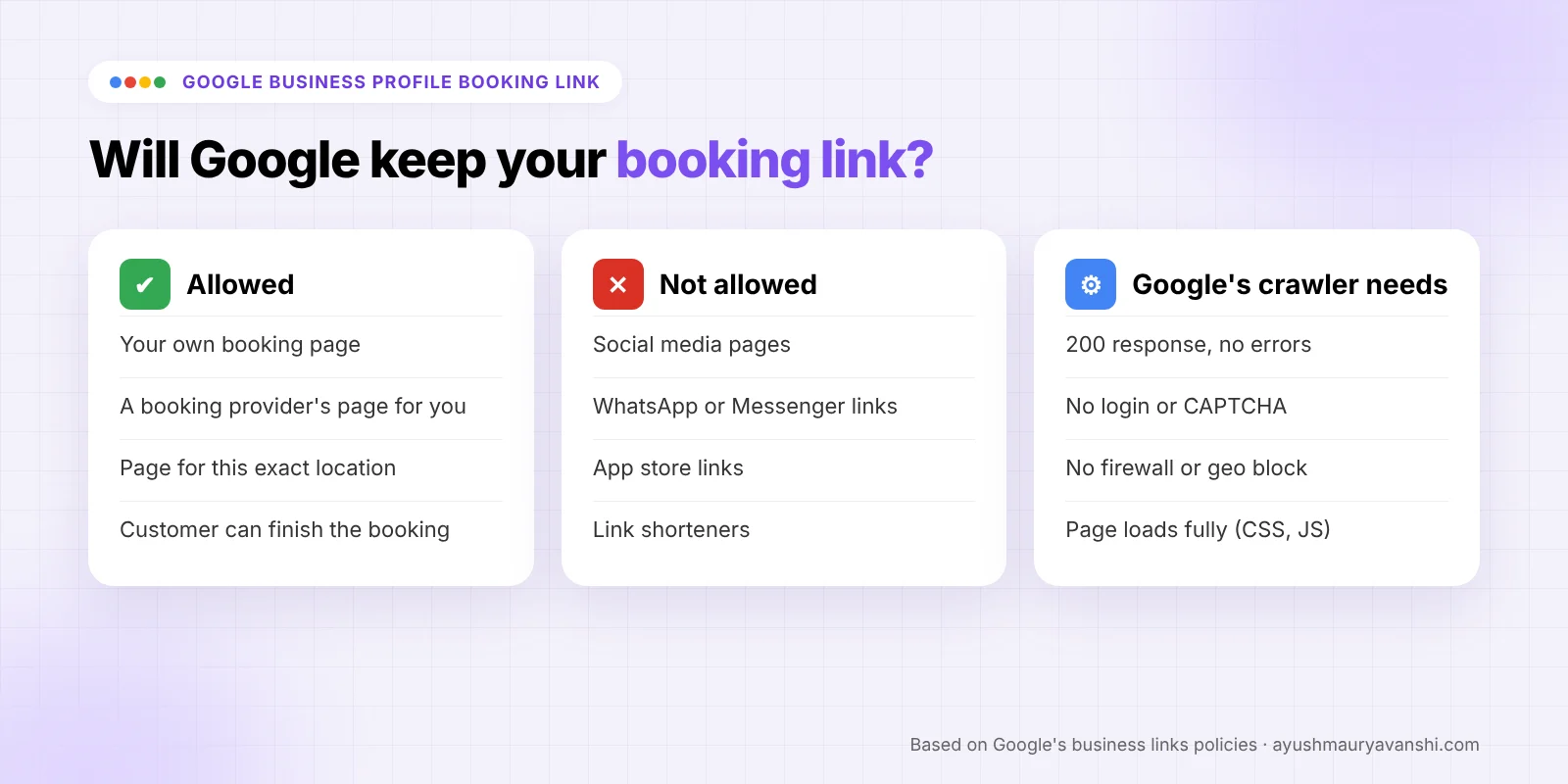
- Booking links must go to a page where the customer can actually book. Social media, messaging links, app store links and link shorteners aren’t allowed.
- Google’s crawler checks booking links. If your booking page blocks it, needs a login or shows a CAPTCHA, the link can be removed.
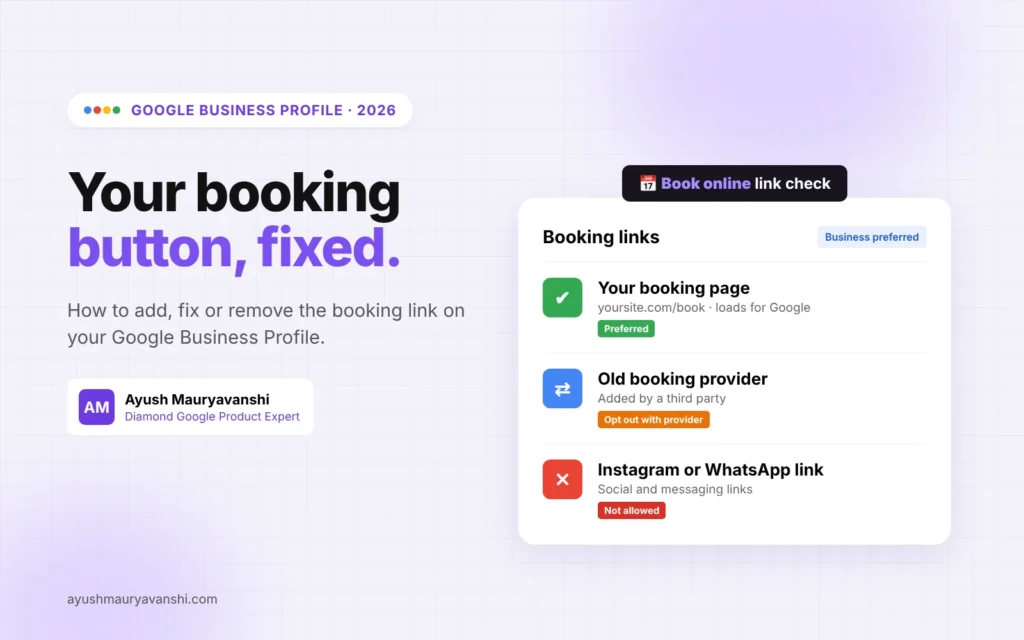
- You can’t delete a third-party booking provider’s link from your profile yourself. You have to opt out with that provider.
Where does a Google Business Profile booking link show?
On a Business Profile that supports bookings, the link appears as a button such as “Book online”, “Book”, “Book an appointment” or “Schedule online”, depending on the business type and where it’s shown. Customers see it in the Business Profile in Google Search and on Google Maps. If there are several booking options, Google can show a list of providers under the button.
There are two kinds of booking links:
- Links you add yourself. Your own booking page, or a page from booking software you use.
- Links from third-party partners. Google’s help page on managing your local business links says links for services like appointments, reservations and food ordering can appear on your profile automatically through third-party partners. Many of these come through the Reserve with Google program.
Knowing which kind you’re looking at decides how you fix it, so keep that split in mind for the rest of this guide.
How do you add a booking link to Google Business Profile?
- Sign in to the Google account that owns or manages the profile.
- Open your Business Profile. In Google Search, select Booking. In Google Maps, select Edit profile and then the booking option.
- Select Add link. If you already have links, select Add another link.
- Paste the full URL of your booking page.
- Select Save.
New links don’t always show the same minute. Give it some time, then check your profile from a phone in Google Maps as a customer would see it.
If you don’t see a Booking option at all, it’s usually one of three things: the profile isn’t verified yet, your business category isn’t eligible for booking links, or booking links aren’t available for your type of business in your country. Google’s business links policies say not all businesses and regions are eligible. A hair salon can add a booking link, for example, but not an online ordering link.
How do you set a preferred booking link?
If more than one booking link is on your profile, including links from providers, set the one you actually want customers to use as preferred:
- Open your Business Profile and select Booking.
- Select Set preferred link.
- Choose the link you want.
- Select Save.
Google moves that link to the top and labels it “Business preferred”. This is the cleanest fix when a provider you used years ago still shows next to your current system. Customers see your choice first, even before you’ve got the old one removed.
What booking links are not allowed?
This is where I see most links get rejected or quietly removed. Based on Google’s policy page, a booking link has to:
- Go to a dedicated page for your business where the customer can complete the booking. A general home page or a “contact us” page that only has a form isn’t what the button promises.
- For multi-location businesses, go to the page for that specific location, not a page for all locations or a different branch.
- Be a normal, well-formed URL. Spaces, odd symbols, backslashes or a doubled “https://” get rejected.
- Be unique. You can’t add the same link twice, and Google allows only one link per domain, counting your links and provider links together.
These link types aren’t allowed at all:
- Social media pages
- Messaging links, such as WhatsApp or Messenger chat links
- App store links
- Link shorteners
If you want customers to message you on WhatsApp, that belongs in the chat or WhatsApp options of your profile, not in the booking link.
Why did my booking link disappear?
Google doesn’t just check your link when you add it. Its policy page says Google checks links using automated tools and sometimes manual review, at most once a day, and may remove links that don’t comply.
The part that catches people out is the technical side. Google checks booking pages with a crawler called Google-BusinessLinkVerification, and Google says this crawler doesn’t follow robots.txt. Your booking page needs to:
- Return a normal success response, not a 403, 404, 500 or 503 error.
- Load fully for the crawler, including images, CSS and JavaScript.
- Not require a login or a CAPTCHA to view.
- Not block, rate-limit or geoblock the crawler, and not show the crawler different content from what customers see.
In my experience, the usual culprits are security plugins and firewalls on WordPress sites, bot protection on a CDN, and booking pages that sit behind a client login. If your link keeps vanishing, open the URL in a private browser window. If you get a challenge page, a login screen or an error, Google probably does too.
If you believe your link was removed by mistake, Google’s policy page points to a request a review form. Fix the page first, then ask for the review.
Why is there a “Book online” button I didn’t add?
This is the November 2026 story. On November 9, Search Engine Roundtable reported that “Book online” buttons were appearing on profiles where the owner hadn’t set up booking. Local SEOs noticed it on businesses with no booking software connected, and some of these links led to an error page on Google’s reservation system. Others reported that adding a website contact page as a booking link now triggers the “Book online” button.
Google hasn’t announced anything about this, so I wouldn’t treat it as a confirmed feature yet. What I’d do if it shows on your profile:
- Click the button yourself and see where it goes.
- If it goes to your own booking or scheduling page and works, you can leave it.
- If it leads to an error, a provider you don’t use or a page where nobody can book, open your Booking settings and check what’s listed there.
- Add your real booking link and set it as preferred, so customers land on the right place.
- If it’s a third-party provider you never signed up with, follow the removal steps below.
And if you’ve ever put your contact page into the booking field just to get a button, it’s worth replacing that with a real booking page. A button that promises booking and drops people on a contact form costs you trust, and it doesn’t meet Google’s rule that the link must let customers complete the action.
How do you remove a third-party booking link?
You can’t delete a third-party booking or reservation provider from your Business Profile settings. Google’s help page is clear on this. The provider has to remove it.
- Find the provider’s name on your booking button or list.
- Contact that provider through its opt-out link, support form or account portal and ask to remove your business.
- Google says providers must process opt-out requests within 5 business days.
- If the link is still on your profile after that, report it to Google through the third-party violation form linked from Google’s help page.
Food ordering is different, by the way. Owners can hide food ordering providers themselves from the Food ordering settings. I covered that in my post on Google Business Profile ordering controls.
Should you use Reserve with Google or your own link?
Both are valid. Here’s how I explain the difference to owners:
| Your own booking link | Reserve with Google provider | |
|---|---|---|
| How it’s set up | You paste a URL in your profile | You sign up through a supported provider, then select it in your profile |
| Where the customer books | On your website or booking page | Often without leaving Google |
| Cost | Whatever your booking software costs | The provider may charge you, so check with them |
| Performance data in your profile | Not available for custom links | Available through Reserve with Google |
| How fast it appears | Usually soon after saving | Google says within a week |
Google’s help page on setting up bookings through a provider explains the provider route: select Bookings on your profile, choose Get started, pick your provider and select Done.
If you use your own link, add UTM tags to it so you can see Google bookings in your analytics. It’s one of the simplest wins I suggest, because otherwise booking clicks from your profile just blend into the rest of your traffic.
Can a booking link get my profile suspended?
A normal booking link to your own booking page won’t. Problems start when the link tells a different story from the rest of the profile, such as a booking page for a different business name, a different city, or a lead generation site that books for many companies. That kind of mismatch can raise questions during reviews of the profile. Keep the booking page clearly branded with the same business name, address and phone number as your profile.
If your profile has already been suspended and you’re not sure why, my GBP reinstatement service starts by checking exactly these kinds of mismatches.
What to do now
- Search your business on Google and Maps from a phone and tap the booking button.
- Confirm it goes to a page where customers can actually book, for the right location.
- Add your real booking link if it’s missing, and set it as your preferred link.
- Open the link in a private window to check there’s no login, CAPTCHA or error.
- Ask any old provider you don’t use to remove your business, and report it to Google if it’s still there after 5 business days.
- Add UTM tags so you can track bookings from your profile.
Frequently asked questions
How do I add a booking link to my Google Business Profile?
Open your Business Profile, select Booking in Google Search (or Edit profile in Google Maps), select Add link, paste the URL of your booking page and select Save. Your profile must be verified, and your business type must be eligible for booking links.
Why can’t I see the booking option on my Business Profile?
The most common reasons are that the profile isn’t verified, your business category isn’t eligible for booking links, or booking links aren’t available for your type of business in your country or region. Google says not every business or region is eligible for every link type.
Can I use my WhatsApp or Instagram link as a booking link?
No. Google’s business links policy doesn’t allow social media links, messaging links, app store links or link shorteners. The booking link must go to a page where customers can complete a booking for your business.
Why did Google remove my booking link?
Google checks links with automated tools and may remove links that don’t comply. Common causes are a booking page that returns an error, needs a login, shows a CAPTCHA or blocks Google’s link verification crawler, or a link that goes to a general page instead of a dedicated booking page.
How do I remove a booking provider I never signed up for?
You can’t delete third-party booking providers from your profile settings. Contact the provider through its opt-out link or support form. Google says providers must process opt-outs within 5 business days. If the link remains after that, report it using Google’s third-party violation form.
Why is a “Book online” button showing on my profile?
It can come from a link you or someone with access added, or from a third-party booking provider. In November 2026 some businesses also reported buttons appearing without any setup. Tap the button, check where it goes, add your real booking link and set it as preferred.
Booking button pointing to the wrong place?
A booking button should bring you customers, not send them to an error page or someone else’s system. If yours is missing, keeps disappearing or shows a provider you can’t get rid of, message me on WhatsApp with a link to your profile. I’ll tell you what’s going on and what I’d fix first.